Features: True-Shape Nesting for Illustrator
True-shape packing, nest-inside-cutouts, multi-sheet planning, manual adjust and apply-in-place. Every NestPlug feature, explained for cut shops.
The engine: true-shape packing
NestPlug reads the real outlines of your selected artwork (every curve, notch and tab) and packs those contours onto your sheet with the minimum spacing you specify. This is the same class of geometry used by industrial nesting software for sheet metal and CNC, rebuilt for the way cut shops actually work in Illustrator.
Why bounding boxes fail: rectangular packing of a star inside its bounding box wastes roughly 45% of the box on points alone. Multiply that across a sheet of mixed die lines and you are throwing away 20–40% of the material you paid for. True-shape packing tucks the concave regions of one shape against the convex regions of another.
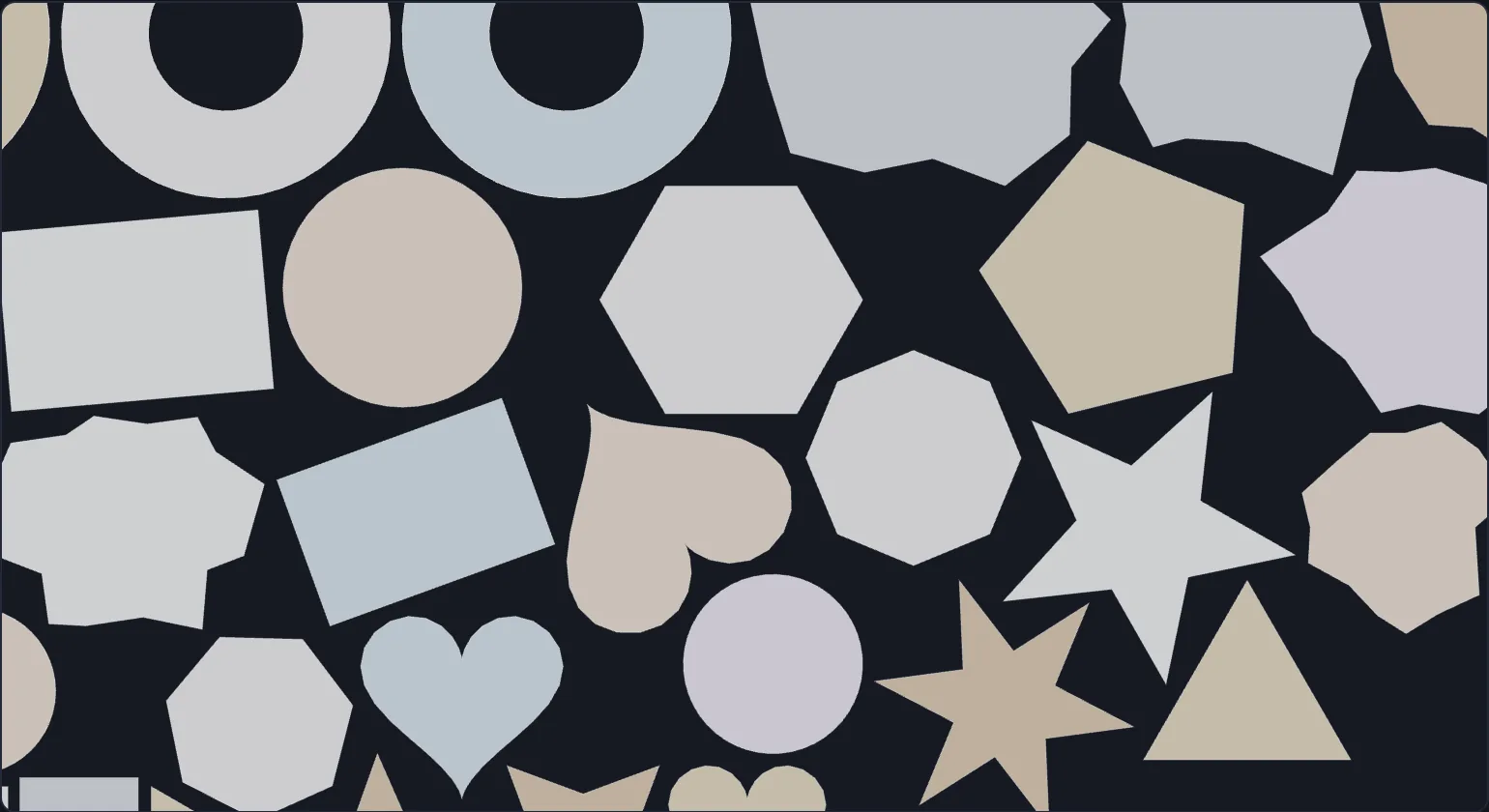
Two nest styles
- Full-width rows: placements flow left to right in tidy rows. The natural layout for die-cut sheets and print-then-cut work, where a predictable grid matters more than squeezing out the last percent.
- Compact cluster: the optimizer packs toward one tight blob for maximum density on laser beds and tight sheet stock.
Nest by contour, or bounding box
By default the engine packs the real die-cut contour of every shape. Switch Nest by to bounding box when you want predictable rectangular placement instead: print tiles, square-trimmed output, or layouts a human should be able to read at a glance.
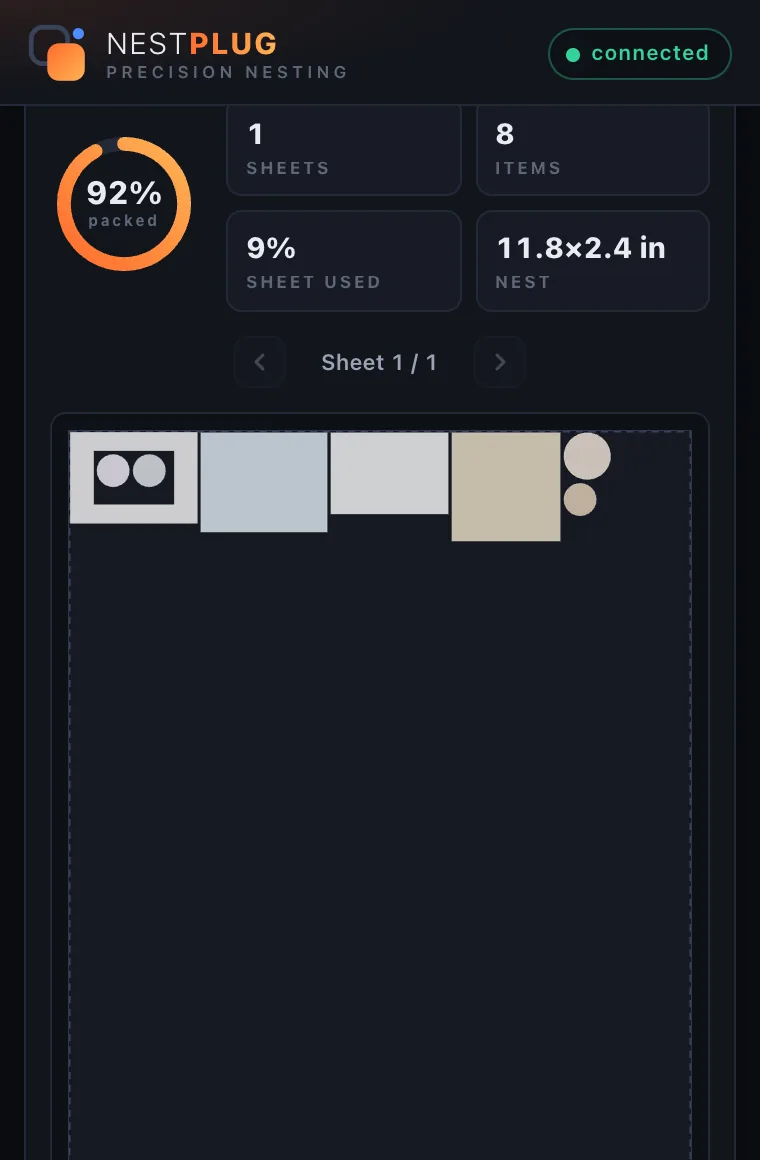
Nest inside cutouts
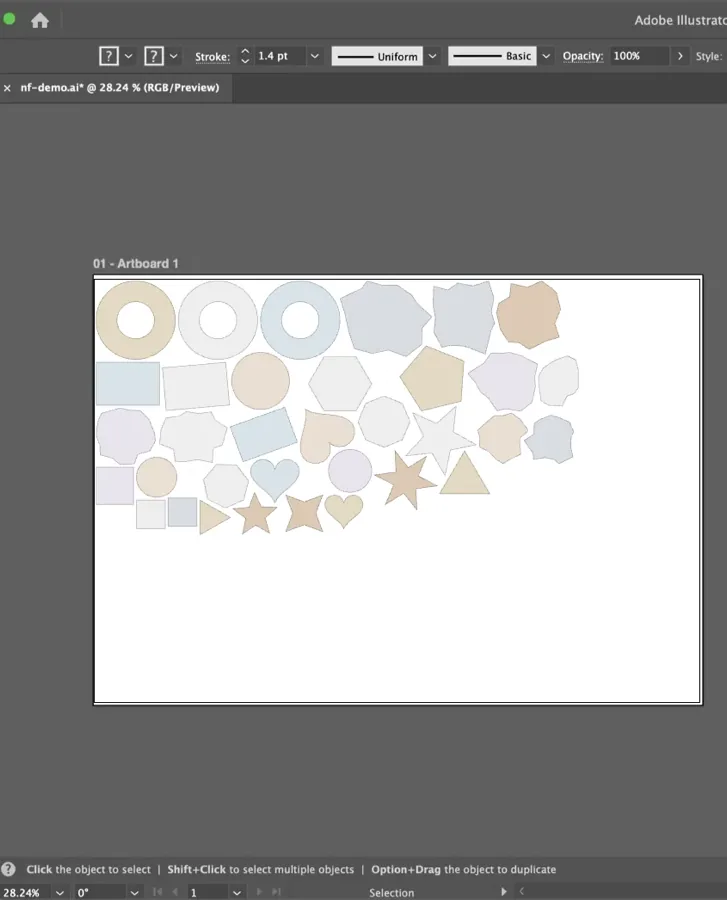
Turn on Nest inside cutouts and the holes in your artwork become real estate: small shapes tuck inside donut rings, frames and label windows while the ring is still cut whole around them. It is off by default, so your layout stays exactly what you expect until you ask for the extra space.
Rotation you actually control
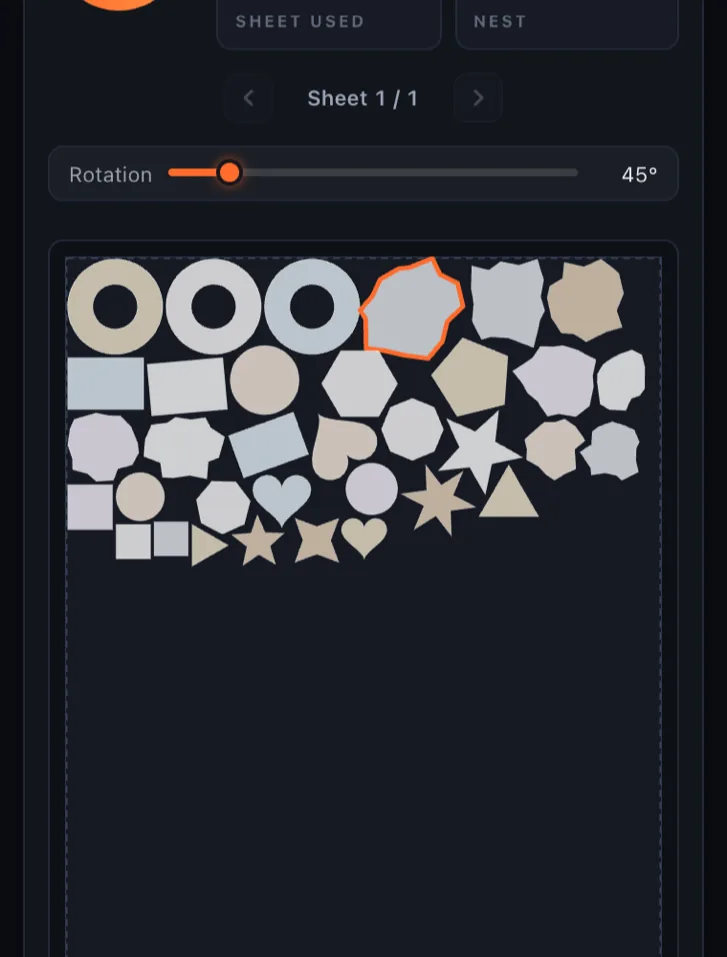
- Rotation step: let the optimizer turn shapes in 0°, 5°, 15°, 30°, 45° or 90° increments. 0° for grain direction and one-way prints; 5–15° for serious density.
- Fixed angle: pin every shape to one angle you choose.
- Allow mirror: flip symmetric parts to close awkward gaps.
Spacing you control
Minimum distance sets the exact gap your cutter needs between cut lines: 0.5 mm for a tight plotter job or 3 mm for weeding-heavy vinyl. Edge padding keeps every cut line clear of the sheet edge. Kerf allowance adds the material your laser or blade burns away, so the layout accounts for the cut itself.
Search budget and multiple options
Give the optimizer anywhere from 1 to 300 seconds and ask for up to 20 layout options. Then pick the arrangement you like from the option selector: same constraints, different layouts, one click to compare. The Max Quality chip applies a proven high-density preset (contour packing, fine rotation steps, longer search, five options) in one click.
Multi-sheet jobs
When a job exceeds one sheet, NestPlug flows placements onto additional sheets and balances the fill, so a 400-sticker order becomes three predictable sheets instead of one overflowing artboard and a prayer. Sheet gap controls the spacing between sheet origins when the layout is applied, so sheets stay cleanly separated on your artboard.
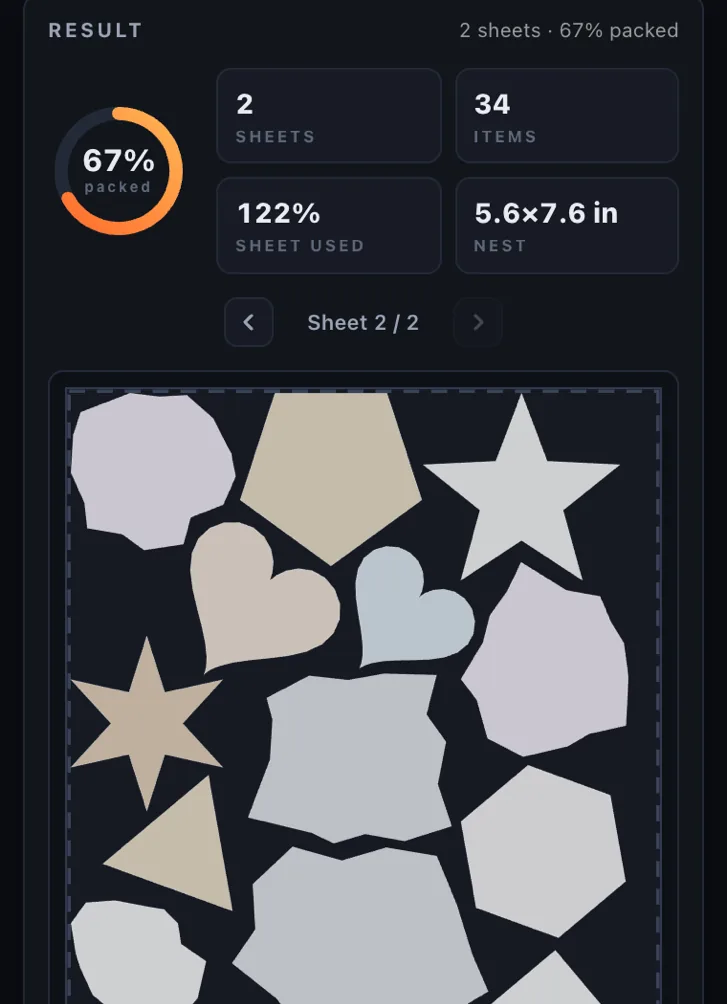
Preview, fine-tune, then apply
The preview panel renders every sheet with every placement and reports packed percentage, sheets used and nest size. Change a constraint (spacing, rotation, sheet size) and re-calculate in seconds. Nothing touches your document until you press Apply.
And when the optimizer gets 99% of it right, Manual adjust gets the last 1%: click any placement in the preview and drag it, nudge it with the arrow keys, or set its exact angle on the rotation slider. An edited chip marks touched placements, and Reset returns a single shape to its calculated spot.
Apply in place
Apply moves your original artwork into the nested layout: Apply This Sheet or Apply All Sheets. No duplicated objects, no exported copy-file, no parallel version of your design. Everything remains fully vector and editable, and Revert Last Apply returns the document exactly as it was, deterministically. No undo-stack roulette.
Divide by color
One checkbox nests each fill color as its own group on its own sheets, whether for multi-head cutters, layered print-then-cut jobs, or simply cutting one color at a time. Colors never share a sheet or a gap calculation.
Units and sheets
- Inches or millimeters, switched in the panel.
- Custom sheet width and height for any sheet or roll stock you load.
- Edge padding keeps cut lines clear of the sheet edge on every side.
Licensing that respects your day
- One-time $199. No subscription, updates included.
- One device at a time; deactivate and reactivate to move machines in seconds.
- Works offline for up to 14 days between short background checks. Planes, firewalled studios and field laptops welcome.
- No telemetry. Your artwork never leaves your machine. The plugin has no reason to look at it.